Notice: Undefined index: cf_maxage in /home/robochamp/public_html/wp-content/advanced-cache.php on line 51

Notice: Undefined index: cf_browser_maxage in /home/robochamp/public_html/wp-content/advanced-cache.php on line 51

Notice: Undefined index: cf_maxage in /home/robochamp/public_html/wp-content/advanced-cache.php on line 54

Notice: Function _load_textdomain_just_in_time was called incorrectly. Translation loading for the buddyboss-pro domain was triggered too early. This is usually an indicator for some code in the plugin or theme running too early. Translations should be loaded at the init action or later. Please see Debugging in WordPress for more information. (This message was added in version 6.7.0.) in /home/robochamp/public_html/wp-includes/functions.php on line 6121
block Archives - International Robotics Championship https://robochamp.org/tag/block/ Have fun, competing with robots! Thu, 17 Dec 2020 11:36:31 +0000 en-US hourly 1 https://wordpress.org/?v=6.8.5 https://robochamp.org/wp-content/uploads/2020/09/cropped-IRC_favicon-32x32.png block Archives - International Robotics Championship https://robochamp.org/tag/block/ 32 32 How to Install Third Party Blocks (like RGB block) In EV3 Mindstorms https://robochamp.org/2020/12/17/how-to-install-third-party-blocks-like-rgb-block-in-ev3-mindstorms/ https://robochamp.org/2020/12/17/how-to-install-third-party-blocks-like-rgb-block-in-ev3-mindstorms/#respond Thu, 17 Dec 2020 11:27:49 +0000 https://robochamp.org/?p=1195 To install third party blocks (like RGB block developed by others) inside EV3 Mindstorms, you need to follow some steps. Take a look at what you need to do.

The post How to Install Third Party Blocks (like RGB block) In EV3 Mindstorms appeared first on International Robotics Championship.

]]>
  • You need to have your third party block in your computer.
    1. If you want to install the classic Mindcub3r block, download ColorSensorRGBzip-v1.00.zip to your computer.
    2. If you want to install the enhanced RGB block from ODFL, download this block on your computer.
  • Extract the file from this archive (if it is a .zip file. Otherwise, skip this step).
    On a computer running Windows, find the file in Windows Explorer, click with the right mouse button and select Extract all…
  • Start the LEGO MINDSTORMS EV3 software and create a new, empty project.
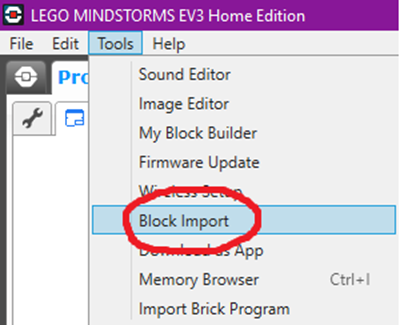
  • Select the Tools menu and then Block Import.
    1. In the Block Import and Export dialog, select Browse.
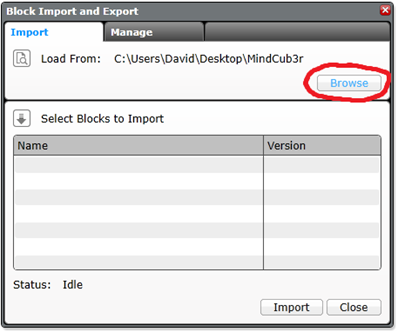
    1. Find the file, which has .ev3b extension on your computer and Open it.
    1. Select the .ev3b file from Select Blocks to Import and then select Import.
    1. To complete the installation, close the dialogs and exit from LEGO MINDSTORMS EV3 software.

    Source:

    How to build MindCub3r for LEGO MINDSTORMS EV3: http://mindcuber.com/mindcub3r/mindcub3r.html

    The post How to Install Third Party Blocks (like RGB block) In EV3 Mindstorms appeared first on International Robotics Championship.

    ]]>
    https://robochamp.org/2020/12/17/how-to-install-third-party-blocks-like-rgb-block-in-ev3-mindstorms/feed/ 0
    How to Use Sensors In RGB Mode https://robochamp.org/2020/12/17/how-to-use-sensors-in-rgb-mode/ https://robochamp.org/2020/12/17/how-to-use-sensors-in-rgb-mode/#respond Thu, 17 Dec 2020 11:17:21 +0000 https://robochamp.org/?p=1188 David Gilday, who made mindcuber, created the EV3 Color RGB mode in the early days, which greatly improved the EV3 Color Sensor.

    The post How to Use Sensors In RGB Mode appeared first on International Robotics Championship.

    ]]>
    Do you know that there are some blocks that will help enhance your light sensors?

    The original EV3 color sensor supports reflected light, ambient light and color mode, but this does not meet our needs. David Gilday, who made mindcuber, created the EV3 Color RGB mode in the early days, which greatly improved the EV3 Color Sensor.

    Original Digital Flipped Lab (OFDL) have added other functions, including the RGB comparison mode and the raw value mode.

    You can download the block from here: https://github.com/a10036gt/EV3-ColorRGBEnhanced-Block/releases/

    RGB Block in EV3 Mindstorms

    How it works

    The block has 3 different modes which will help you use sensors in enhanced way:

    Measure – RGB color

    This mode returns the Red, Green and Blue components of the RGB color.
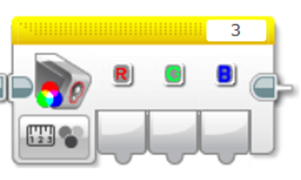
    RGB Mode

    Compare – RGB color

    This mode is a variant of RGB mode, which allows you to change the input value to achieve the judgment effect, as shown above: 20 is Error Amount, R, G, B are 170, 160, 120, respectively.

    The object reads Red to 150-190, Green at 140-180, and Blue at 100-140. When the three are established, the Boolean value is finally output.

    The interval is determined by Error Amount, which is what you input. The RGB value +-Error is the judgment condition.

    Compare RGB color mode

    HSVL Mode

    This mode allow you reading the HSVL value of EV3 Color sensor (convert from RGB).
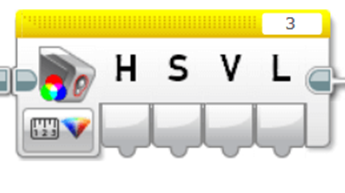
    HSVL mode

    Citation:

    ODFL Original Digital Flipped Lab

    https://ofdl.tw/en/ev3-hacking/ev3-color-sensor-adv-block/Ver 1.6:
    .Add HSVL Mode.
    .Remove Raw value mode (merge to EV3-AdvEV3Col-Block)

    Download

    Download Link (GitHub):
    Author:OFDL HSUT2H Robotics
    Ver:1.6

    The post How to Use Sensors In RGB Mode appeared first on International Robotics Championship.

    ]]>
    https://robochamp.org/2020/12/17/how-to-use-sensors-in-rgb-mode/feed/ 0